
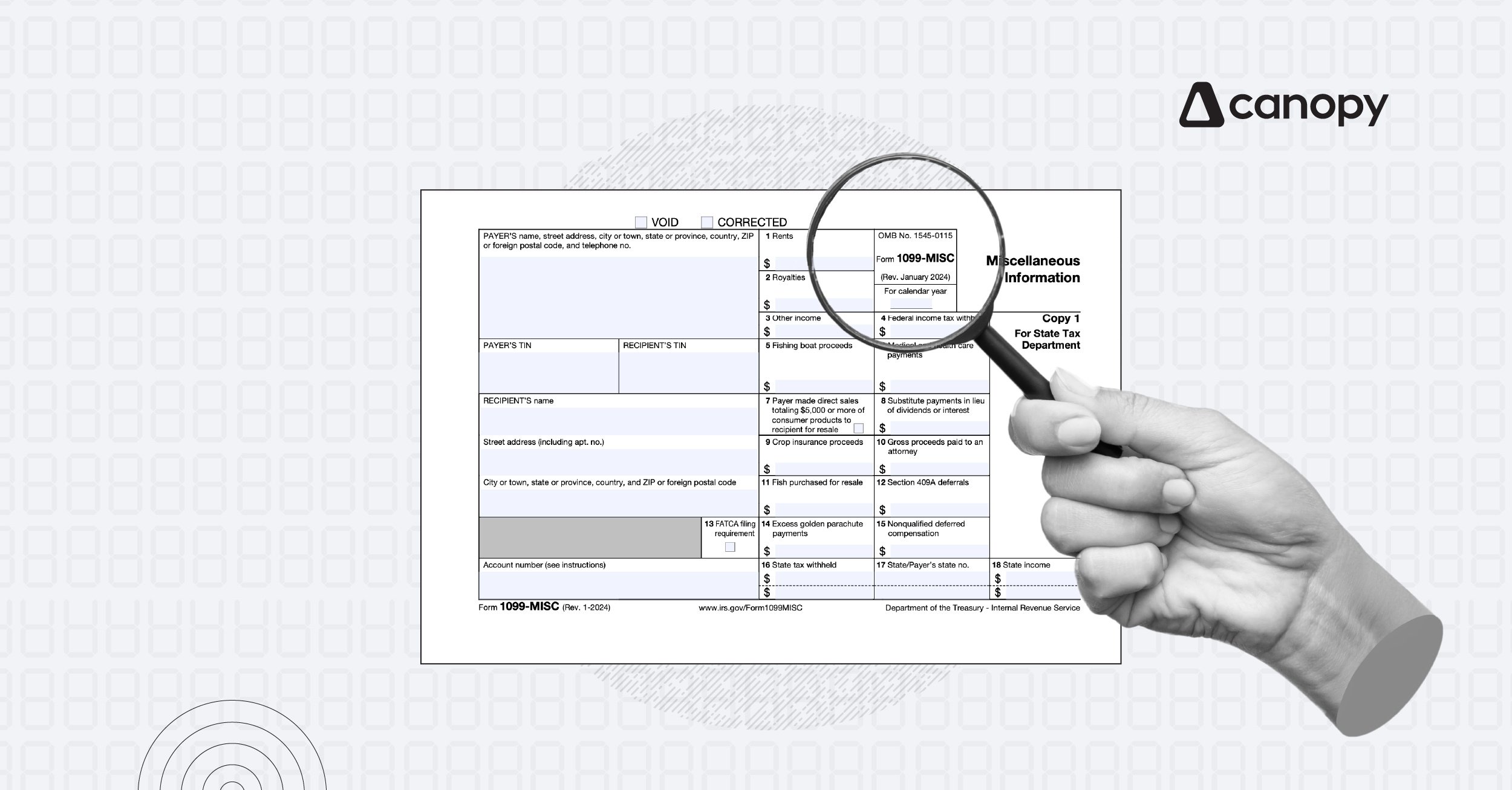

Working on 1099s can feel overwhelming—especially with the time it takes to double-check everything. Typically, we need to pull up the Profit and Loss report and the 1099 Vendor list to compare data and ensure it aligns. But I’ve got a game-changing trick for you! With this tip, you can see the vendor, account, and 1099 information in one custom report, making it easier to share with clients for approval. Ready to streamline your 1099 process? Here’s how!
Step 1: Create a Custom Report in QuickBooks Online Advanced
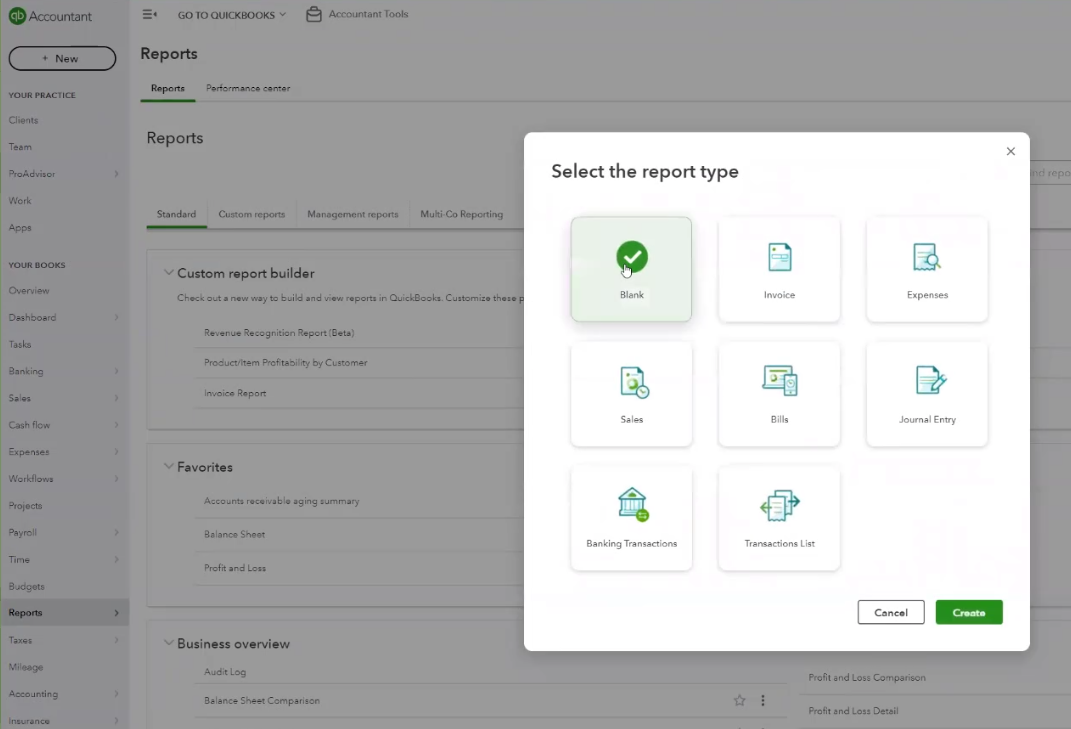
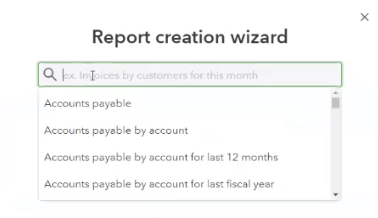
Head to the Reports tab on the left-hand navigation pane in your QuickBooks Online Advanced account. Select Create a new report, choose Blank Report, and let the wizard guide you.
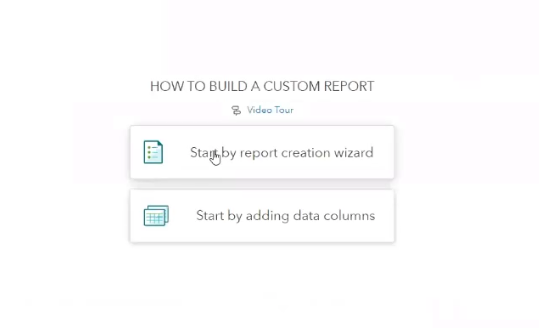
Step 2: Set Up for 1099 Reporting
For this example, choose Expenses for the previous year.
Step 3: Customize the Report Columns
QuickBooks offers multiple accounts, but you can customize the columns to keep only what you need. In the Customize tab, fine-tune your selections by excluding unnecessary columns like Due Date, Transaction Number, Customer Name, Product, Class, and Open Balances.
Next, add Track 1099 and 1099 Printed under the vendor column settings.
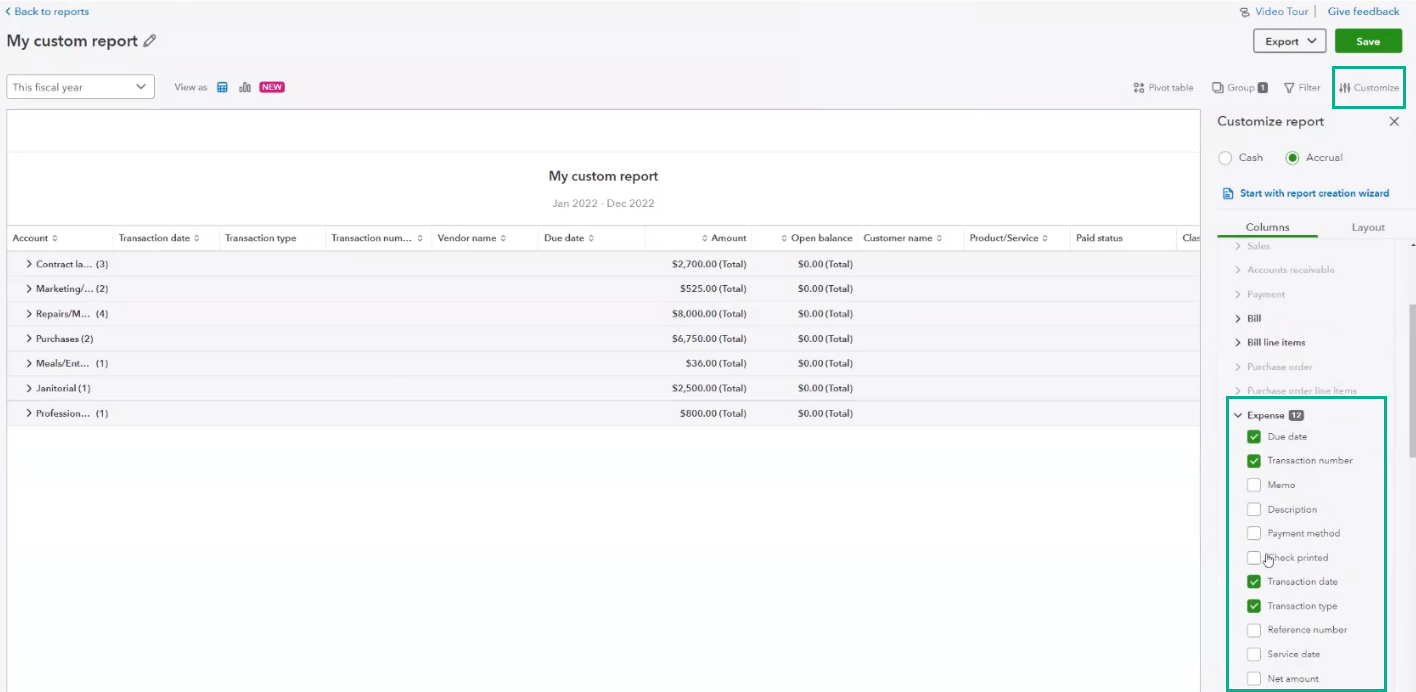
Step 4: Organize by Vendor Name
Now, click Groups and change the grouping from Account to Vendor Name.
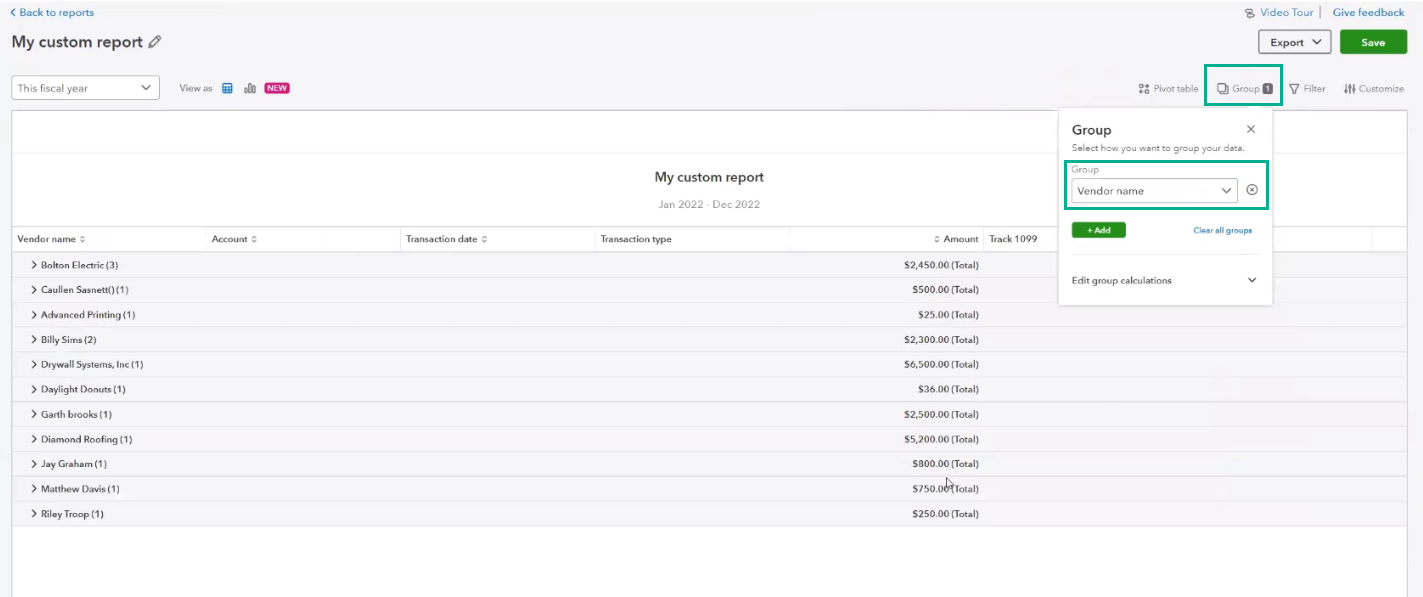
Now, everything you need is in one place! You can see the account used, the transaction date, and whether each vendor is set up for 1099 tracking.
Step 5: Filter and Share
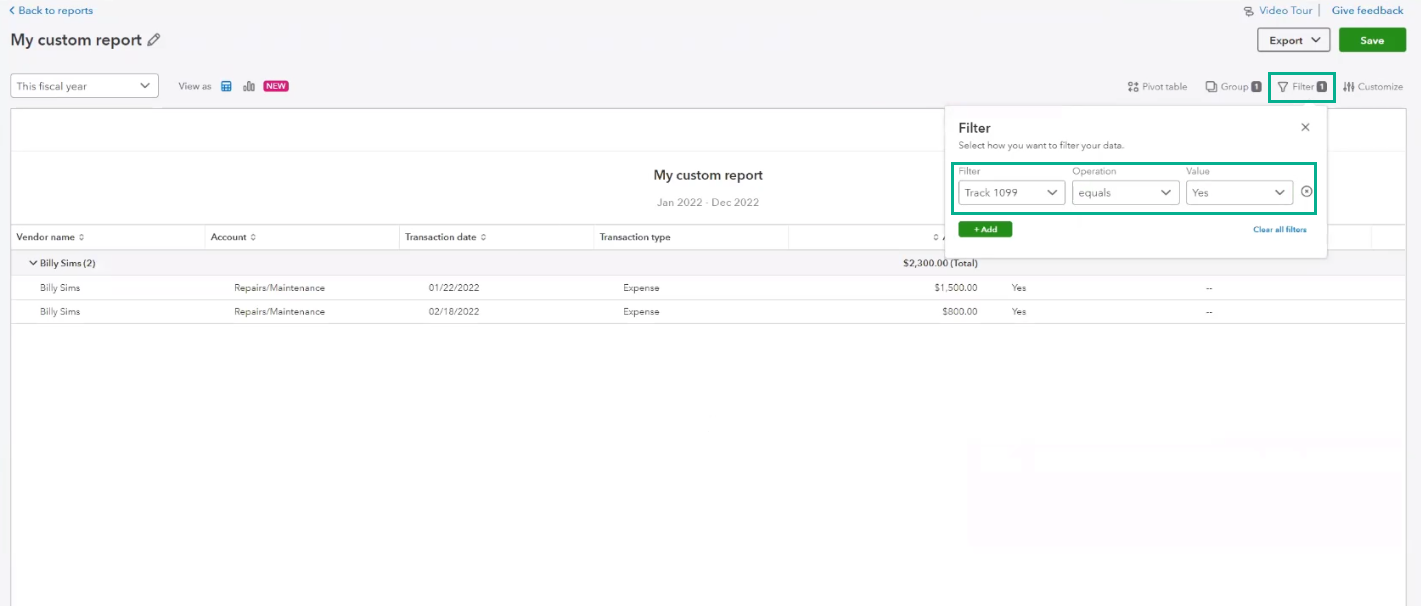
Apply filters to include only Track 1099 vendors, then send the report over to your client for review.
Bonus: Turn It into a Pivot Table
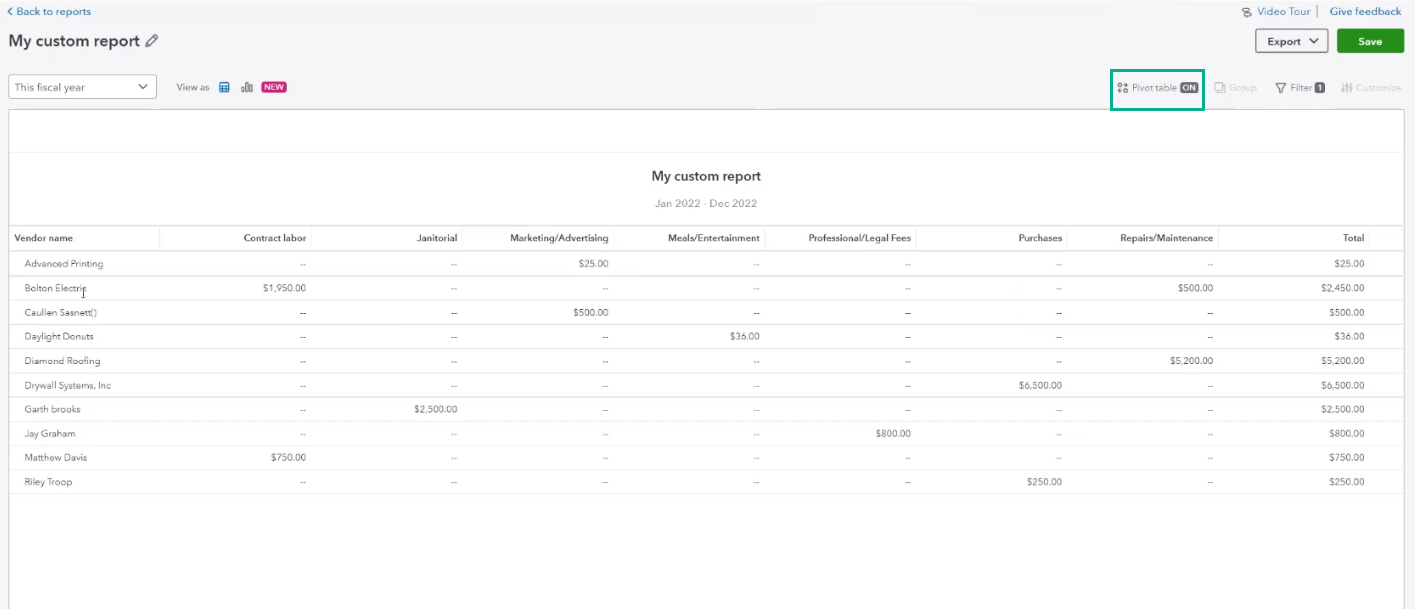
QuickBooks Online Advanced also allows you to convert this report into a pivot table, letting you organize accounts by vendor or customize views to your client’s preferences.
Why This Trick Is a Game Changer
The flexibility of QuickBooks custom reports and pivot tables makes 1099 tasks easier to manage and review. This tip helps you streamline your process as much as it has helped me!
For a live demo of this feature, click here! Happy reporting!