
Document Migration and Interaction
Simplified document migration and interaction—available to both Windows and Mac users.
Easy Installation
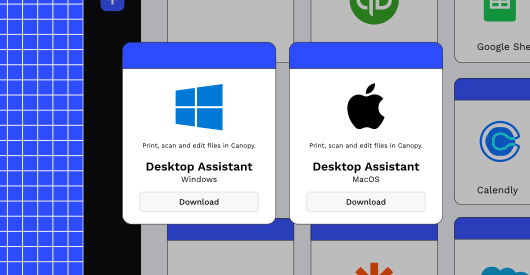
The Desktop Assistant can be easily downloaded inside of Canopy (or here on this page) and installed within minutes to your computer on both Windows and Mac devices
Print To
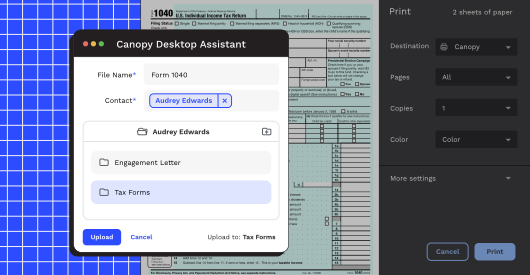
It’s super easy (and efficient!) to get important files and documents into Canopy. You can print documents directly to a client’s profile without having to navigate back and forth between your computer’s hard drive and Canopy. After downloading the Desktop Assistant, you can simply navigate to the print menu in any program that offers it and select Canopy to get the document into Canopy.
Scan To
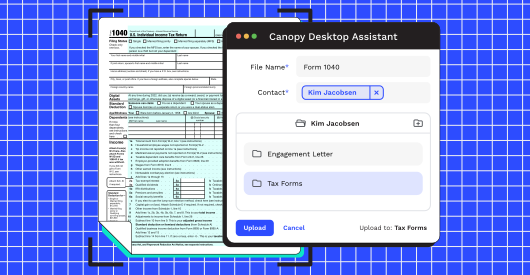
Hopefully your days of scanning physical documents are past, but—if one of your clients still likes to drop off their annual stack of papers—we’ve got you covered. With the Desktop Assistant, you can have them scan directly into Canopy to make it easy to digitally organize, store, and access them in the future.
File Migration
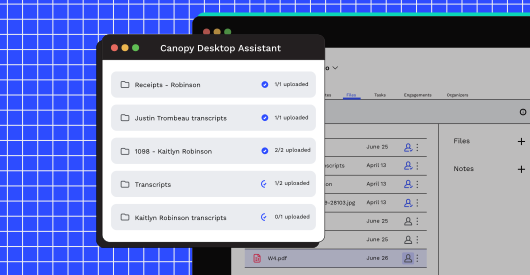
Upload complete contact folders to Canopy without having to compress anything into a ZIP file. Smart matching saves you time by matching folders uploaded to contacts already in Canopy. Bulk upload as many contact folders as you need while still getting the rest of your work done, uninterrupted. Find our step by step guide to file migration here.
Document Interaction
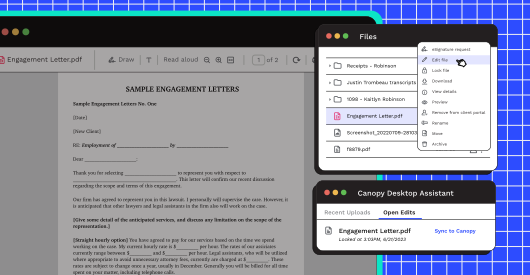
Need to make edits on a document that’s stored in Canopy? The Desktop Assistant makes it possible for you to do just that, right in Canopy, bridging the gap between Canopy cloud and your non-cloud files.

“Canopy is our new best friend! We switched from Office Tools to Canopy over 2 years ago. The implementation and data transfer was almost seamless.”
Frequently Asked Questions
Can’t find the answer you are looking for? Reach out to our support team.
The file edit is initiated in Canopy. Then, in Canopy Desktop Assistant, the file becomes locked so that others can’t edit. Once you save your changes you simply click “Sync to Canopy.” The file becomes unlocked and the changes will be visible in Canopy. Check out this article for more help with Desktop Assistant.