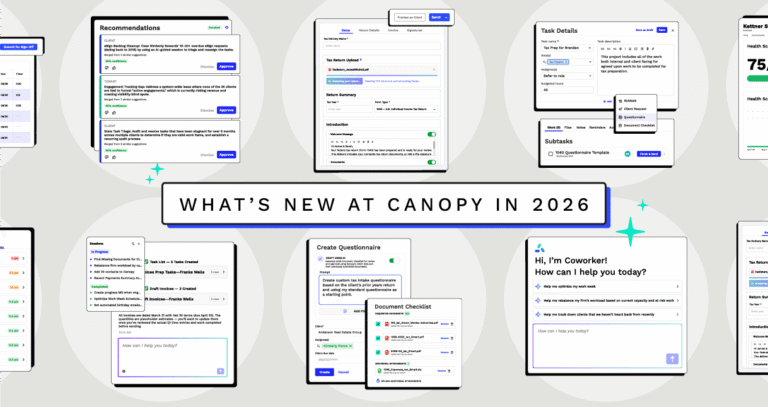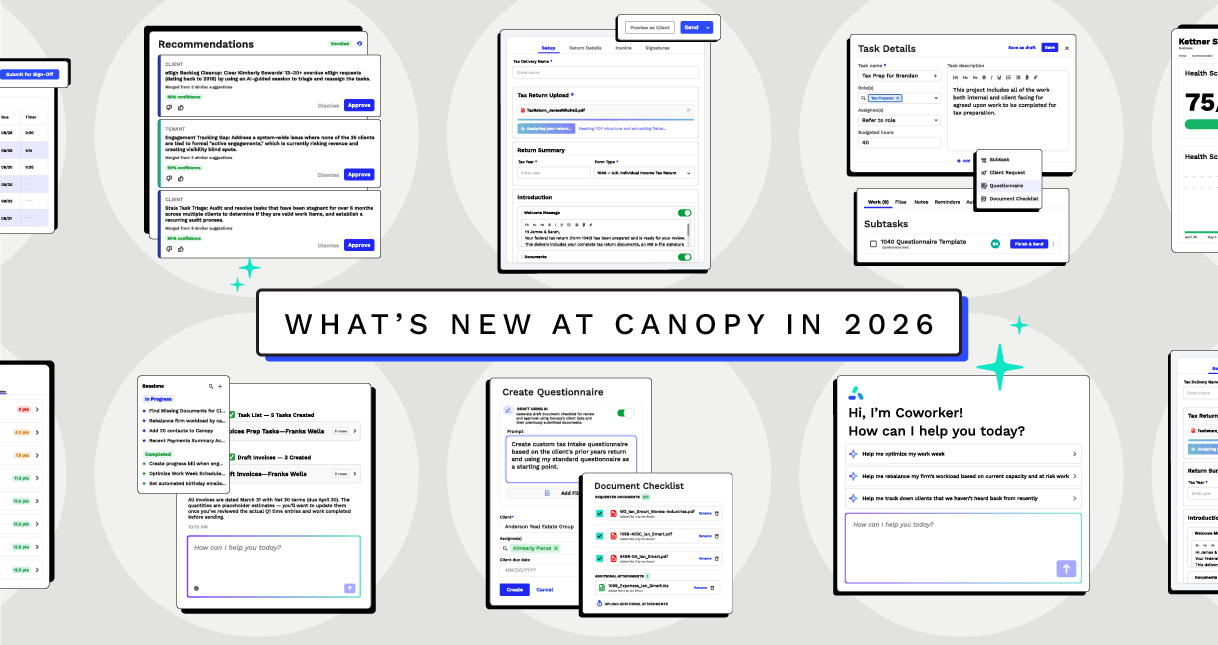

2026 has been a big year at Canopy. Tax Workflow Automation now runs tax season from the first document request to the signed, paid return. Close Automation brings the monthly close into Canopy. And Coworker, our AI assistant, is open to every firm in beta.
But don’t just take it from us. Take it from Jason Staats. (And then you can take it from us after that.)
Like Inigo Montoya, we would love to explain in detail. But there is too much, so let us just sum up 15 of the great things we’ve built this year, with a peek into what’s coming next.
1. Tax Workflow Automation
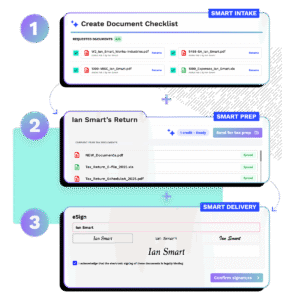
Canopy now runs tax season in one AI-powered workflow, from the first document request to the signed, paid return. We call it Tax Workflow Automation, and it’s built from three distinct modules: Smart Intake, Smart Prep, and Smart Delivery. Pick just the one you need for your firm, or connect all three.
Smart Intake builds a personalized questionnaire and document checklist for every client and sends it from your task templates, Smart Prep hands documents to Filed, Byron, or Juno to populate the return. And Smart Delivery reads the finished return so clients can review, sign, and pay in one guided flow (with a secure link if they don’t use the portal).
“We have been able to provide a greater quality of service because we don’t have to track tax return workflow manually. When one task is completed the next task is assigned to a necessary individual and it will be in their workflow automatically.”
—Frederick Dean, Frederick Dean Jr. LLC, Canopy Customer
2. Canopy Coworker
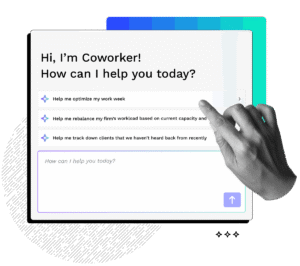
Coworker, Canopy’s AI assistant, is now in open beta for all firms on Canopy’s Standard, Plus, and Premium plans. Activate it in Experimental Features and ask questions about your firm’s work or numbers using Canopy Insights. Coworker is available from a side panel across major pages, so help is close at hand as you work. It can also take action in Canopy—not just suggest next steps—and asks for your approval before actions such as sending portal invites or making bulk record updates. You can review what it plans to do before it proceeds.
Here are just a few sample prompts you can ask Coworker to do for you:
- “Find clients who haven’t returned their engagement letter.”
- “Which clients still have outstanding document requests? Draft a reminder for each.”
- “Draft engagement letters for these new clients: [names].”
- “Create a follow-up task for [client] about [topic].”
- “Which team members have the most capacity for a new return?”
“Coworker is like a familiar AI assistant inside of Canopy. There’s no new security gymnastics to deal with here. It’s got access to a ton of context if you think about everything that’s in your practice management system. In Canopy, that’s time and billing, that’s your tasks, that’s your email, that’s the client portal. That’s a whole bunch of things. So the AI can have access to all of that. This is a big deal.”
—Jason Staats, Founder of Realize and Accounting Firm Coach
3. Canopy Public API
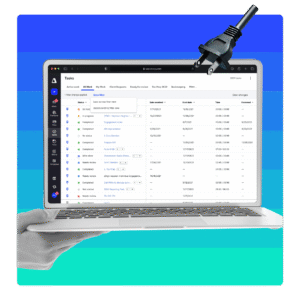
You asked for it, and we delivered. Now you can connect Canopy to the tools your firm relies on most. The Canopy Public API provides 37 endpoints across clients, contacts, files, invoicing, tasks, client requests, client notes, and user lookup—so your developer can build custom connections and reduce manual data entry. Plus and Premium firms can generate an API key in Settings, and the Developer Portal includes public documentation to help your team get started.
“Choosing an all in one platform has usually meant choosing a closed one. You get everything in one place, but you sacrifice connectivity with the rest of your solutions. Canopy now proves you don’t have to make that trade off.”
—Luke Frye, CPA, Canopy’s Accountant in Residence
4. Canopy Close Automation

Month-end close, connected to the work around it. Close Automation brings clients’ QuickBooks Online data into Canopy, where your team can monitor book health, review flagged items, and jump from an issue to its source transaction. Resolve items in Canopy or send a client request tied to the transaction, then track progress with a close checklist and share a client-ready financial report. Close Automation was also named a 2026 CPA Practice Advisor Innovation Award winner.
- Canopy surfaces issues such as uncategorized transactions and missing vendor details.
- Close checklists and flagged items live alongside your team’s tasks and client communication.
- Every Canopy account includes five QuickBooks Online connections to get started.
Canopy’s 2026 Roadmap
Additional Updates
5. Automated and Personalized Intake in Task Templates
Make client intake part of the workflow. Add a questionnaire or document checklist to a task template, then apply it to one client or hundreds. Each client gets their own copy, and you can set it to send when a task or status condition is met, or on a chosen date. Use a saved template for a consistent request, or generate a client-specific draft with AI using your prompt and client information. Building and using standard templates doesn’t use Tax Workflow Automation credits; AI generation does.
6. Canopy Notetaker & AI email summaries
Canopy’s AI notetaker joins your Zoom, Google Meet, and Microsoft Teams calls, writes accounting-aware summaries and follow-ups, and links them to the right client automatically, or you can record in-person meetings from the mobile app. Every transcript and summary is now searchable, and AI can summarize any email in your Canopy inbox. Turn it on in Experimental Features, and never take manual meeting notes again.
“Sometimes you’re across the desk from a client, and you want to capture the conversation,” says Luke Frye, Canopy’s Accountant in Residence. “Simply open Canopy on your phone and hit record using mobile notetaker. The in-person conversation is now captured in Canopy.”
7. Client Messaging
Secure, two-way messaging with clients right inside Canopy, on web and mobile. Share documents, link client requests, and keep every conversation tied to the client record instead of scattered across email and text.
8. Canopy mobile app
The Canopy mobile app does a lot more on the go this year. Clients get native document checklists with the built-in scanner, scheduled payments, and mobile-friendly invoices, and your team can view engagements, attach files already in Canopy, and record in-person meetings with mobile meeting Notetaker.
9. Invoice Templates
Build an invoice template once—service items, rates, terms, and notes—and apply it to any one-off or recurring invoice in a couple of clicks. Same services, same descriptions, same price, every time.
10. Fast and bulk time entry
Log a full week of billable and non-billable time from one Timesheets view, set service items like admin work or PTO as non-billable by default, and lock closed pay periods so no one can add time after payroll and billing are done.
11. More flexible billing
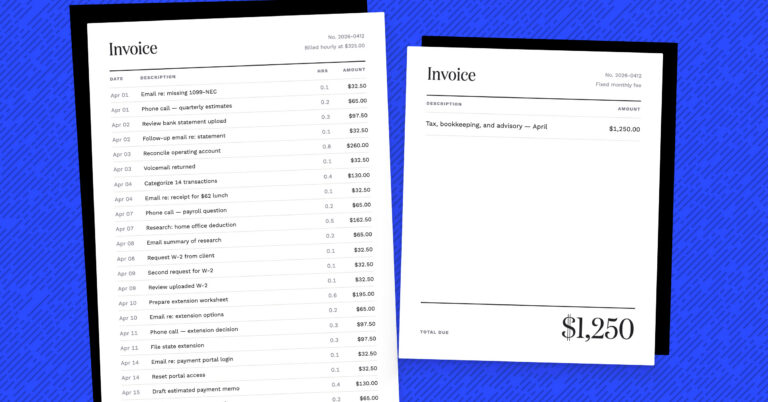
With Canopy billing and invoicing, you can now bill a group of related entities on a single recurring invoice, set late fees that repeat until an invoice is paid (with a cap you choose), hit a clean total with automatic write-ups and write-downs, and skip the extra invoice email when Autopay has it covered.
You can also set a billing contact on any client, and invoices, reminders, and late fee notices go straight to the person who pays the bill—an AP contact, bookkeeper, or office manager—without re-picking them every time.
12. Standard Reports & faster Insights
New Standard Reports give every firm 15 ready-to-run reports, like billable utilization, invoice detail, and aged receivables, with zero setup. And firms that use Insights get dramatically faster dashboards, a Historical A/R view, and new Source and Referred By fields that show where your best clients come from.
13. Task management upgrades
Canopy Workflow now includes a refreshed task list with easy bulk actions and custom columns, plus long-requested additions: a Canceled status, reorderable custom statuses with descriptions, a Completed Date column, Client External ID, and dollar budgets on tasks.
14. Document management & eSign
With Canopy document management, find files faster with a rebuilt document search, print or download files with your annotations intact, and restore archived folders to where they came from. eSign also gets checkboxes and optional fields, one of our most-requested features.
15. Client portal control & security
Client portal security allows you to decide exactly which contacts can see each file or folder in the client portal; hide SSNs, birthdays, and TINs from anyone without permission; and let your team and clients sign in with Google or Microsoft.